Recording & monitoring votes
Proposal votes are managed from the View votes dashboard — the proposal equivalent of a meeting's Voting Dashboard. Use it to monitor how creditors have voted, record votes on their behalf, and confirm the result.
Before you begin
- You need at least Viewer access to open the dashboard.
- You need Editor access to record or delete votes.
Opening the dashboard
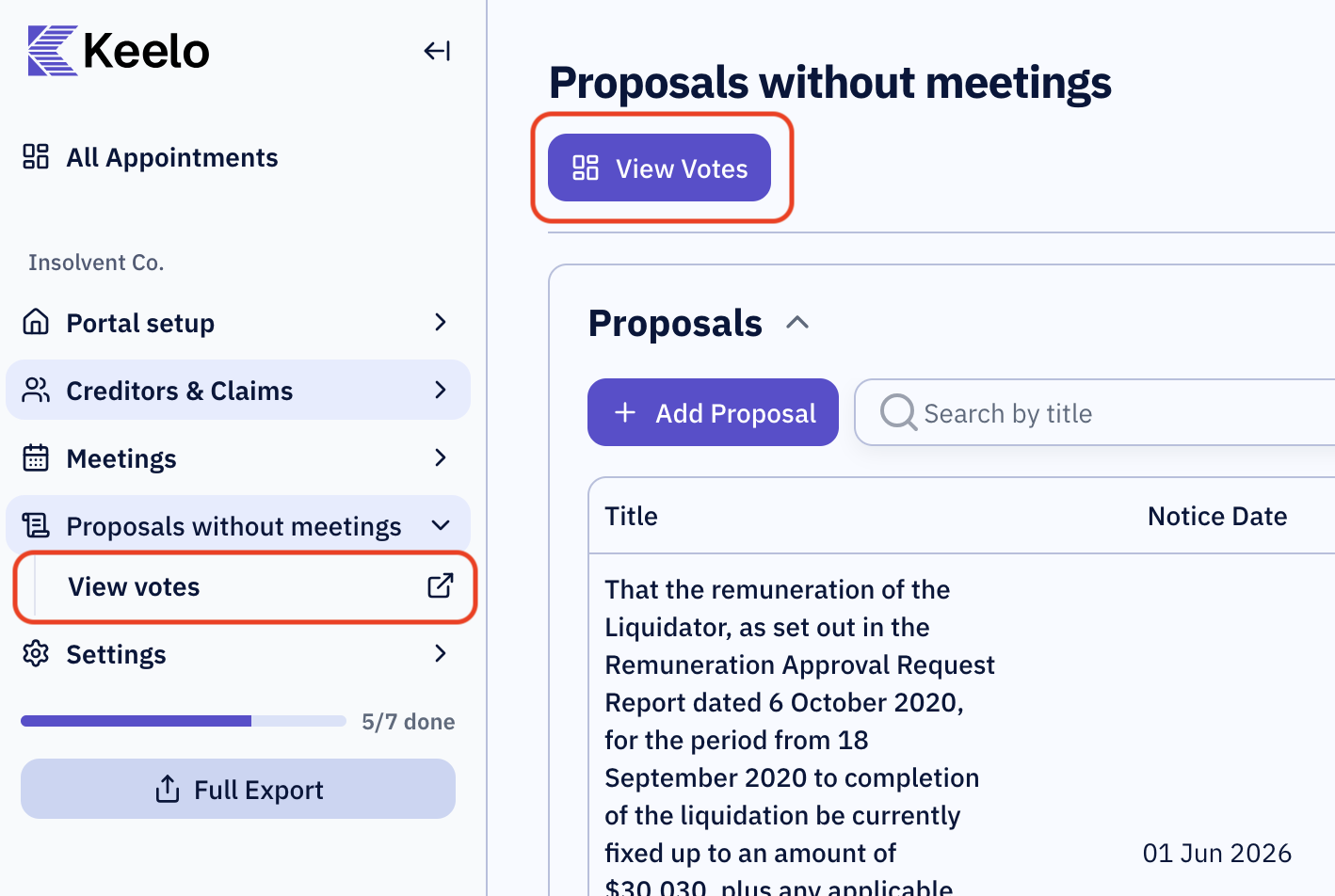
In the appointment sidebar, expand Proposals without meetings and click View votes next to the proposal. You can also click the View Votes button on the proposal page itself.
What the dashboard shows
Select the proposal you want to view from the tab at the top of the dashboard or use the "Jump To" button.

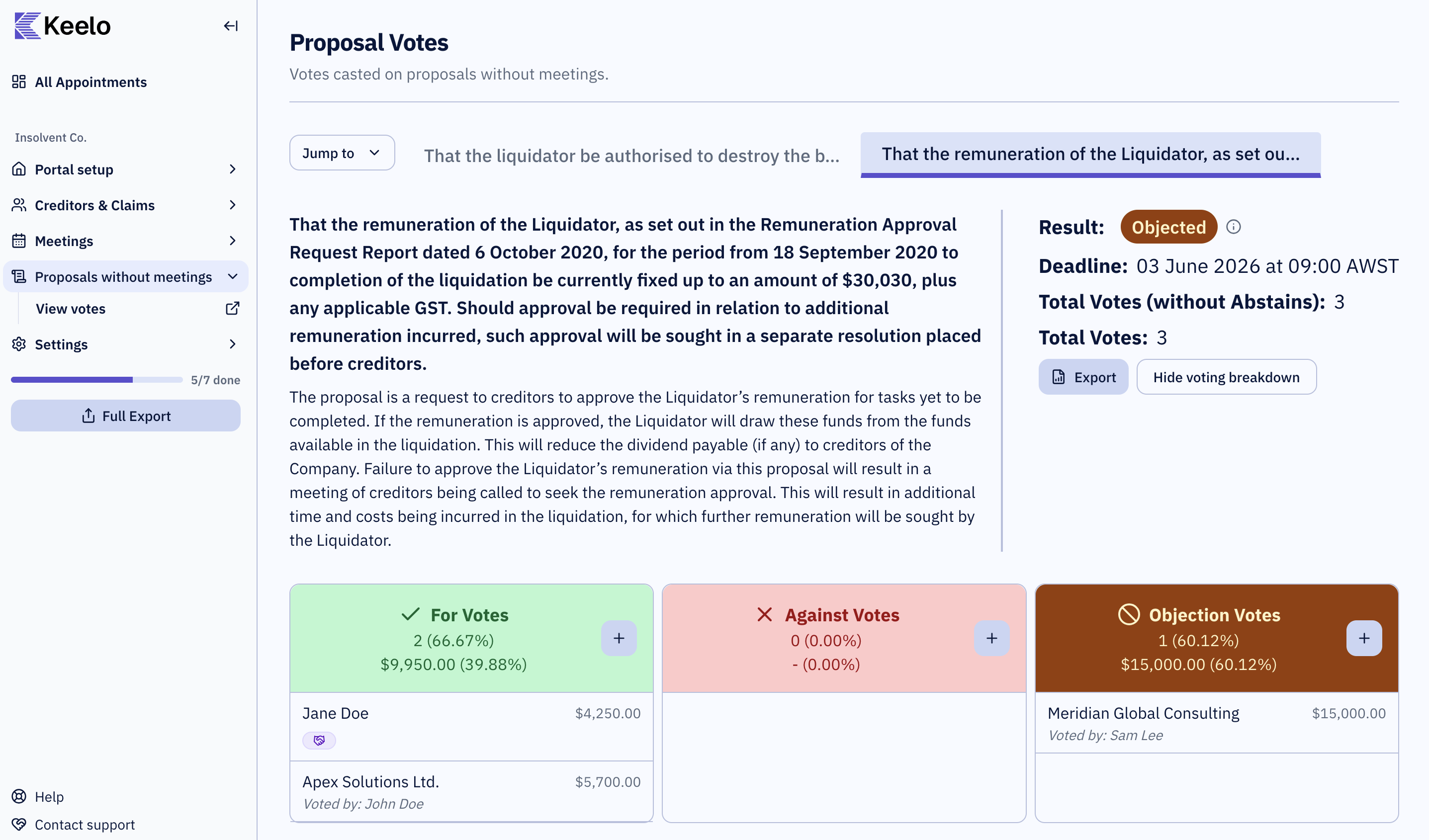
The dashboard gives you a live picture of where the vote stands:
| Section | What it shows |
|---|---|
| Vote tallies | Running totals for FOR, AGAINST, and OBJECT votes by debt value. |
| Result | The current calculated result based on votes recorded so far. |
| Per-creditor breakdown | How each individual creditor has voted. Creditors who are related parties carry a Related Party badge. |
Proposals have three voting options — FOR, AGAINST, and OBJECT. There is no Abstain option (unlike meeting votes).
How the result is decided
Keelo calculates the result automatically as votes come in.
A resolution will be passed if more than 50% in number and 50% in value (of those creditors who did vote) voted in favour of the proposal, but only so long as not more than 25% in value objected to the proposal being resolved without a meeting.
Related party votes

Creditors who are related parties (directors, family members, related entities) carry a Related Party badge in the per-creditor breakdown.
If related party votes change the outcome of the proposal, a banner is displayed to notify you.
Review the related-party banner before finalising results. You may need to note the outcome with and without related party votes for compliance purposes.
Recording a vote on behalf of a creditor
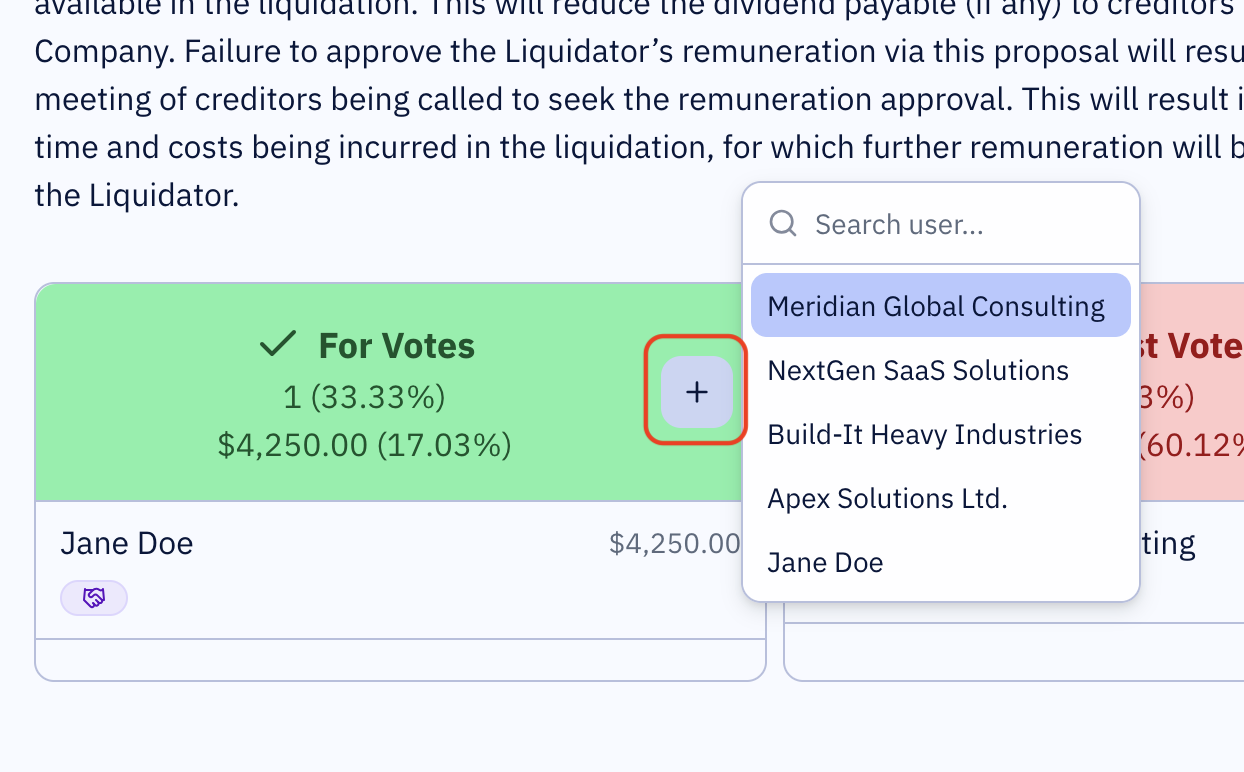
Use this when a creditor cannot submit their vote through the portal — for example, if they are attending in person or have contacted you directly.
You need Editor access to record votes. A vote you record on a creditor's behalf does not require a signature.
-
On the dashboard, click the + / Add vote control.
-
Select the creditor from the list.
-
Choose their vote: FOR, AGAINST, or OBJECT.
-
Submit.
The vote appears immediately in the per-creditor breakdown and the tallies update.
Recording a vote on a creditor's behalf is not blocked by the proposal deadline. You can still record votes after the deadline has passed — creditors themselves cannot vote through the portal after the deadline.
Exporting the results
Once votes are finalised, you can export a summary of the proposal results. See Export proposal results.