Edit or delete a proposal
You can update a proposal's details at any time before voting closes, or permanently remove a proposal you no longer need. For information on creating a proposal, see Create a proposal.
Editing a proposal
Editing lets you update the proposal's title, reason, notice date, deadline, or notice document.
Before you begin
- You need Editor access.
Steps
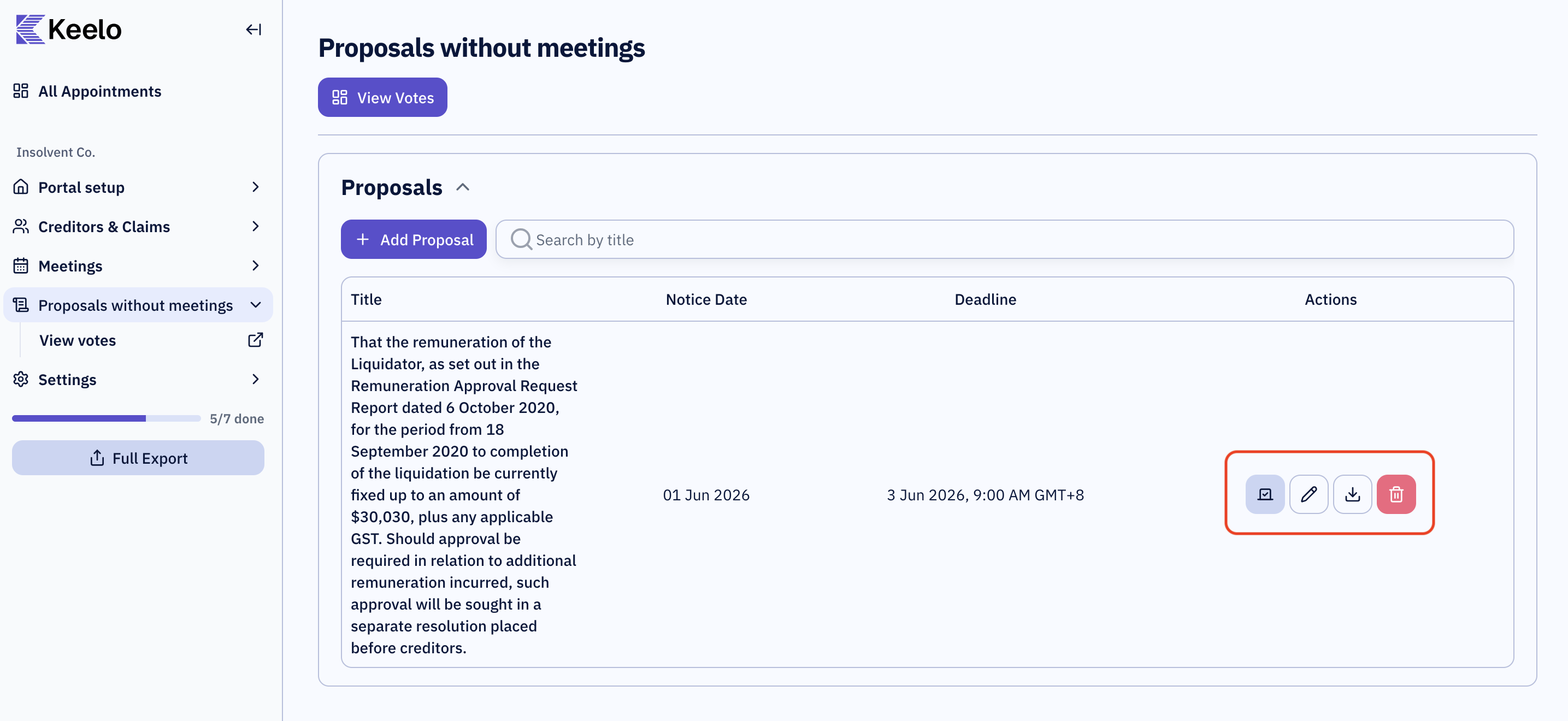
-
Open the appointment. In the appointment sidebar, expand Proposals without meetings and locate the proposal you want to update.
-
Click Edit (pencil icon) on the proposal.
-
Update any of the following fields as needed:
- Title — the name of the resolution.
- Reason — the supporting explanation for the resolution.
- Notice Date — the date the notice was issued to creditors.
- Deadline — the date, time, and timezone by which creditors must submit their votes.
-
To change the Notice Document:
- To replace the existing document, upload a new file. The new file will replace the current one.
- To remove the current document and upload a different one, remove the existing file first, then upload the replacement.
infoA proposal must always have a notice document. You cannot save a proposal without one.
-
Click Save (or Save Changes) to apply your changes.
Deleting a proposal
Deleting a proposal permanently removes it and all associated data.
Before you begin
- You need Admin access. Editors can view proposals but cannot delete them.
Deleting a proposal is permanent and cannot be undone. All recorded votes and the notice document attached to the proposal will be permanently removed.
Steps
-
Open the appointment. In the appointment sidebar, expand Proposals without meetings and locate the proposal you want to delete.
-
Click Delete (trash icon) on the proposal.
-
Confirm the deletion in the dialog that appears.
The proposal, its notice document, and all recorded votes are immediately and permanently removed.