During the meeting
A live meeting runs from one place: the Voting Dashboard. This page covers everything you do once the meeting starts.
To open it, expand Meetings in the appointment sidebar, expand the meeting, and click Votes. You can also use the View Votes button on the meeting page.
The flow of a live meeting
Work through the voting matter tabs in order. For each matter:
- Open the vote when you're ready for creditors to submit.
- Record votes on behalf of any attending creditor who can't use the portal (see Adding votes for creditors), and for any general proxies you hold as chairperson (see Chairperson voting for general proxies).
- Close the vote to reveal the result.
- Break a Deadlock if needed by applying a casting vote
- Move to the next voting matter tab. The Summary tab tracks the running totals.
When the meeting is done, export the results.
The voting dashboard
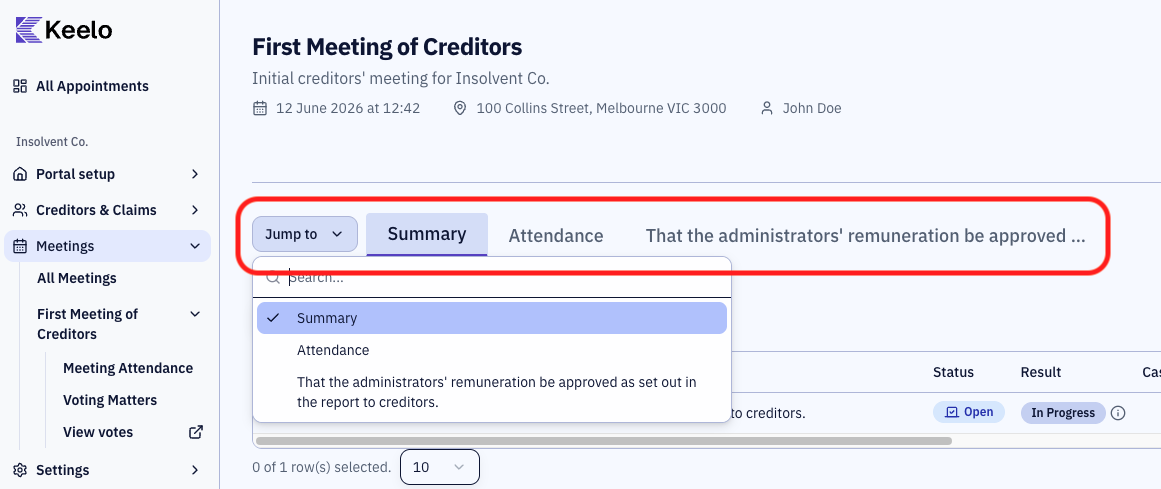
| Tab | What it shows |
|---|---|
| Summary | Meeting-wide aggregation: every voting matter with status, result, casting vote, pass percentage, and totals. You can show/hide columns as needed. |
| Attendance | Add or remove attendees, download proxy forms, review who has registered. Proxies appear here too. |
There will be one tab for each voting matter. If you have a lot of tabs, click Jump to at the start of the tab row to search.
Open and close voting
On a voting matter tab, click Open Vote. The status changes to In Progress and creditors can cast their votes through the portal. When you're ready to call the result, click Close Vote — Keelo calculates the result immediately.
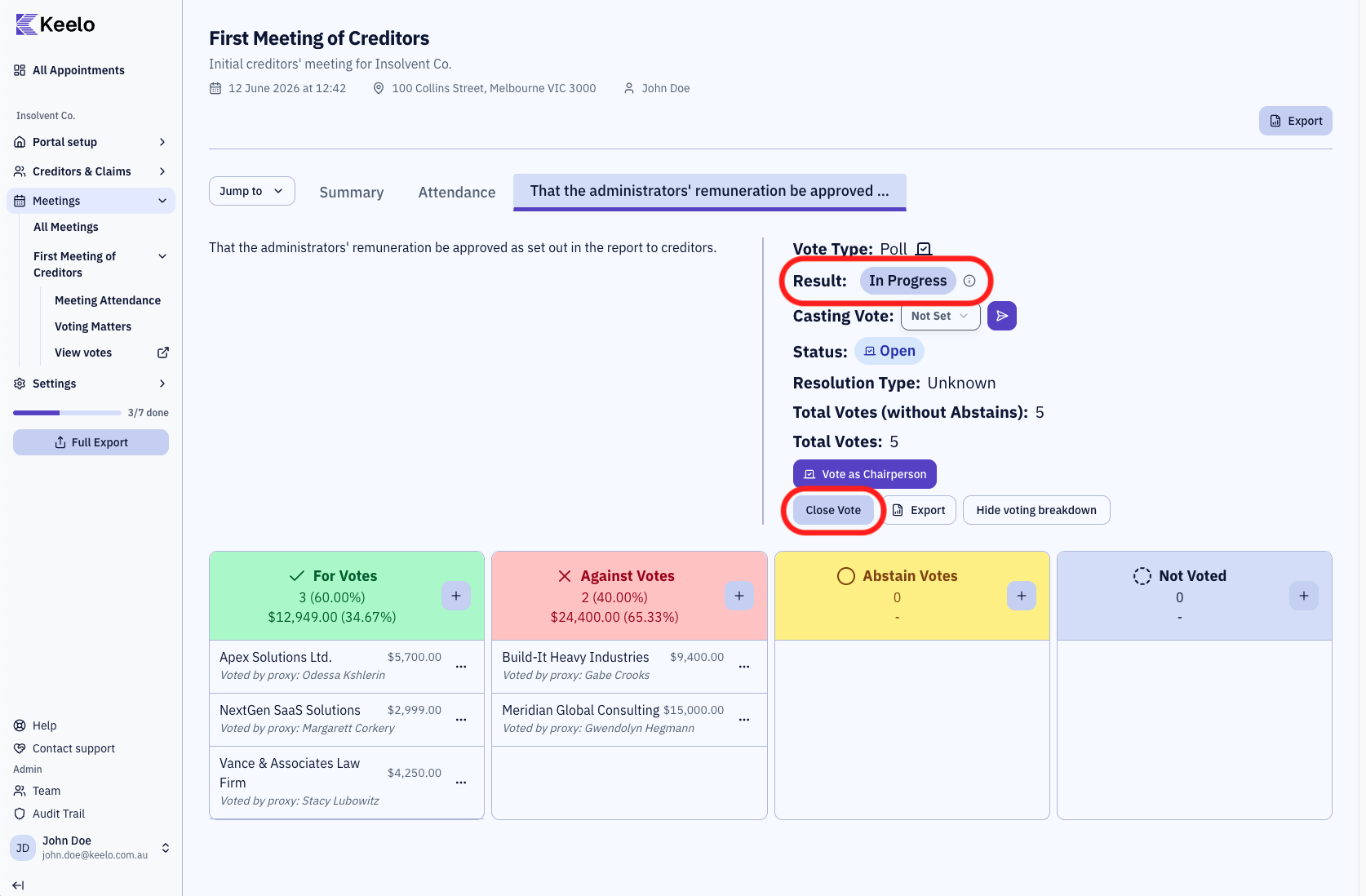
While voting is open, the result is replaced with an In Progress badge. Vote result will be revealed once the vote is closed.
Once you close a vote, no more votes can be submitted. Make sure every attending creditor has had a chance to vote before closing.
Adding votes for creditors
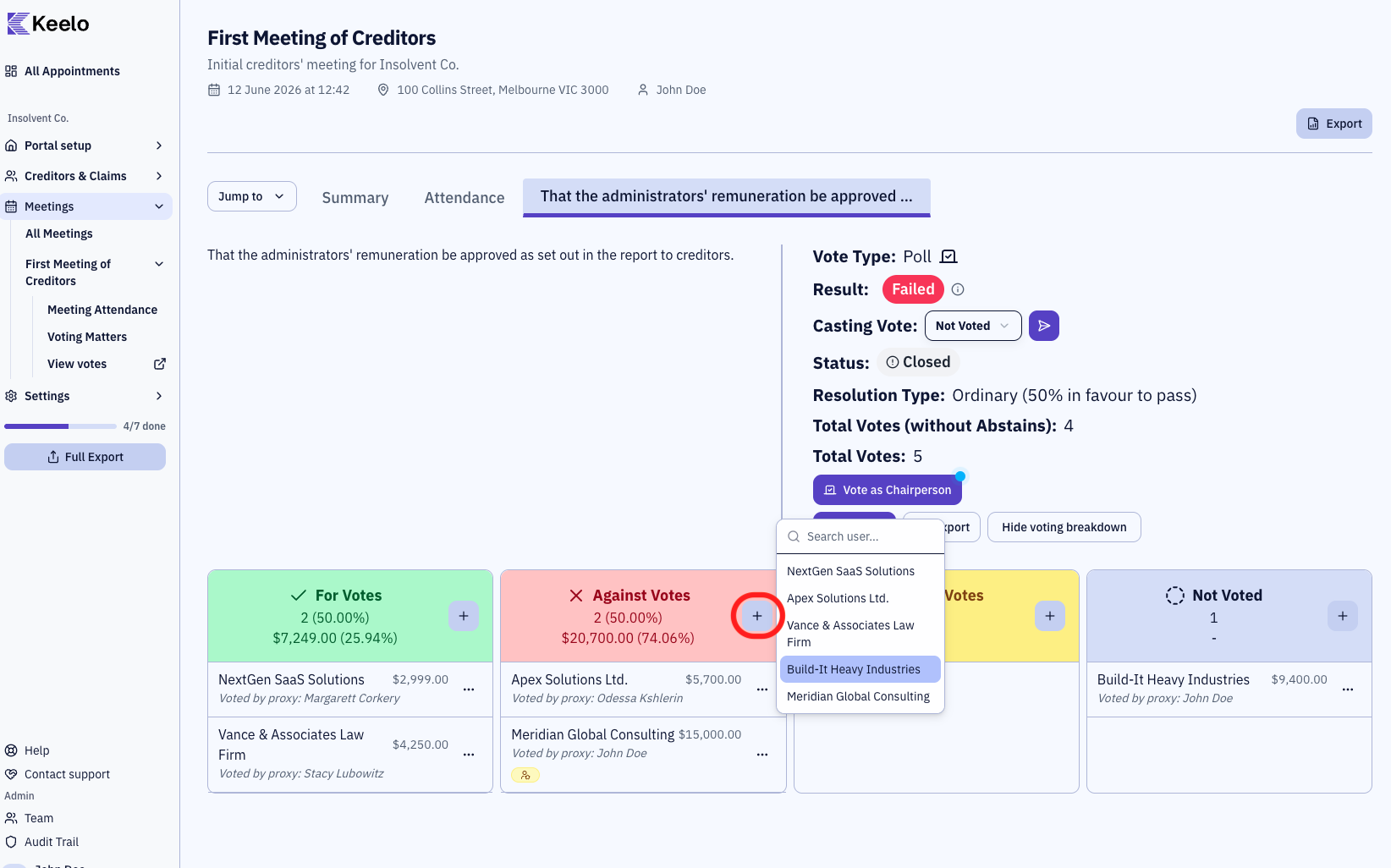
If a creditor is not able to vote through the portal, you can add their vote manually by clicking the + button on the vote header.
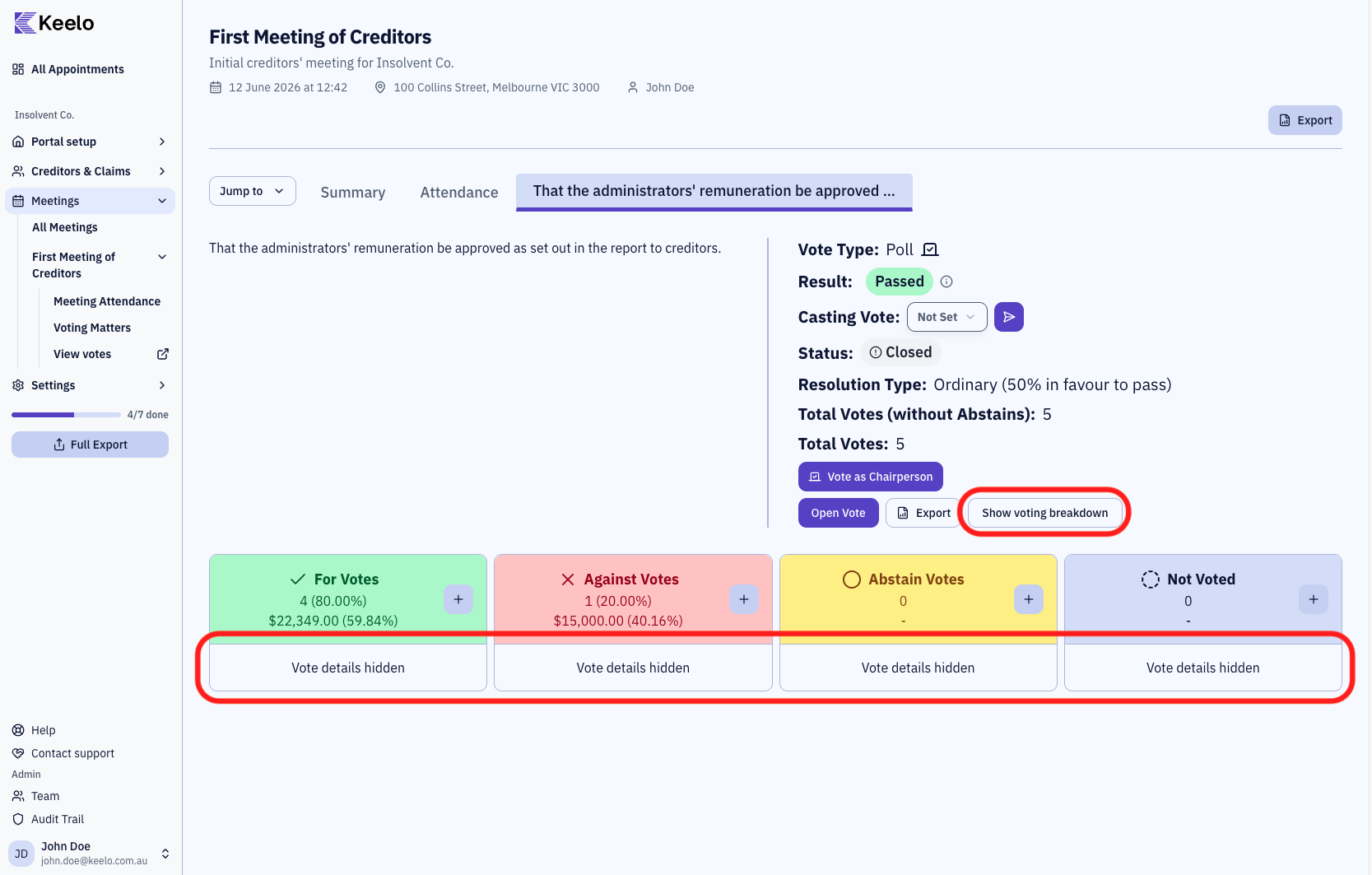
Hide/show the breakdown
The Hide voting breakdown / Show voting breakdown toggle collapses per-voter detail. Useful when screen-sharing during a virtual meeting.
Chairperson voting
Breaking deadlocks
When a vote results in a Deadlock, the chairperson can cast a deciding vote to break the tie.
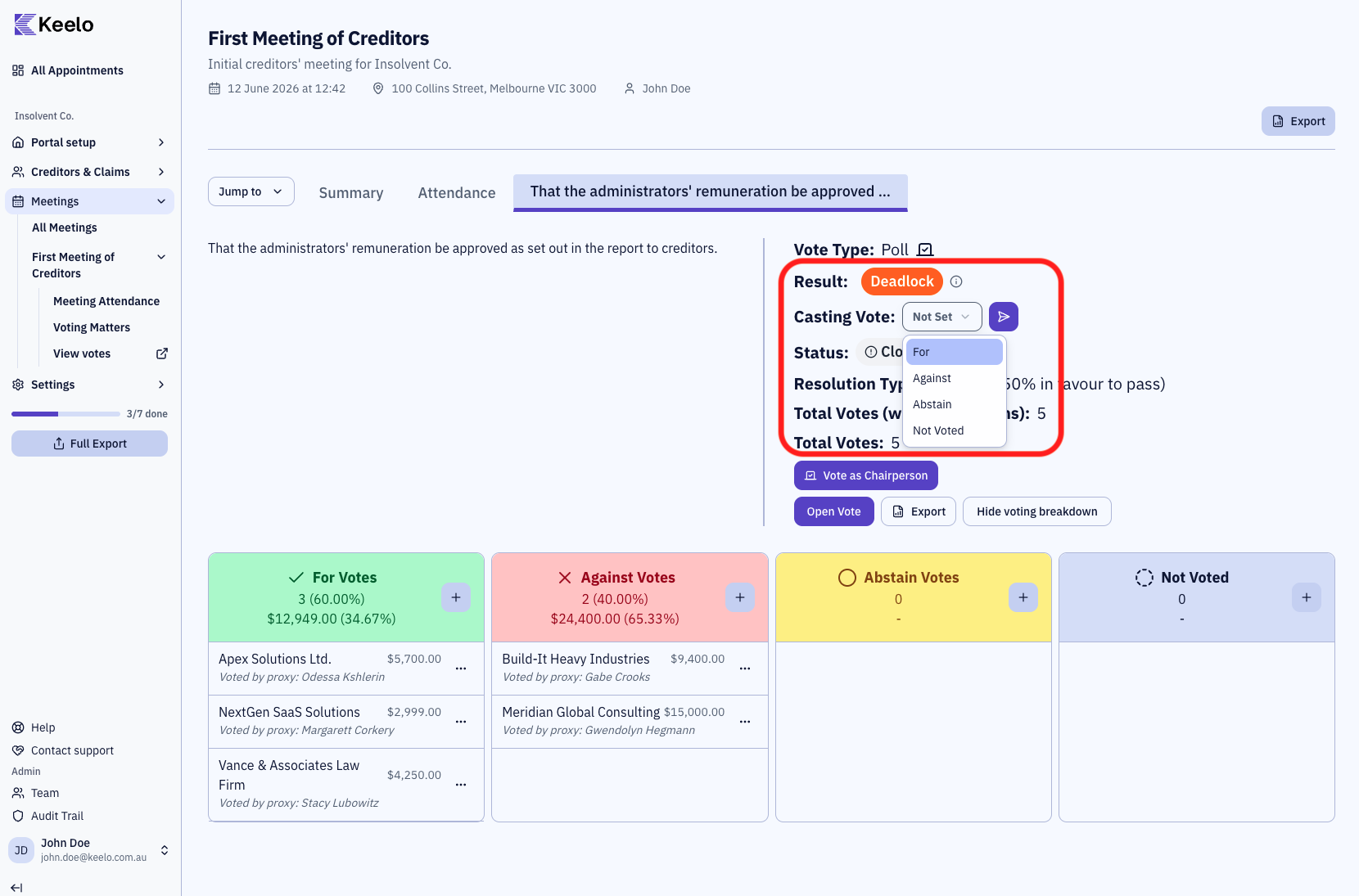
- On the deadlocked voting matter tab, select your casting vote: For, Against, or Abstain.
- Enter a reason (required for For or Against — recorded for compliance).
- Submit. The result badge updates immediately with (Casting Vote) appended.
Chairperson voting for general proxies
Click Vote as Chairperson to submit votes on behalf of your general proxy appointments.
Special proxy appointments will not be affected, their vote cannot be changed unless they withdraw their proxy appointment.
Related party votes
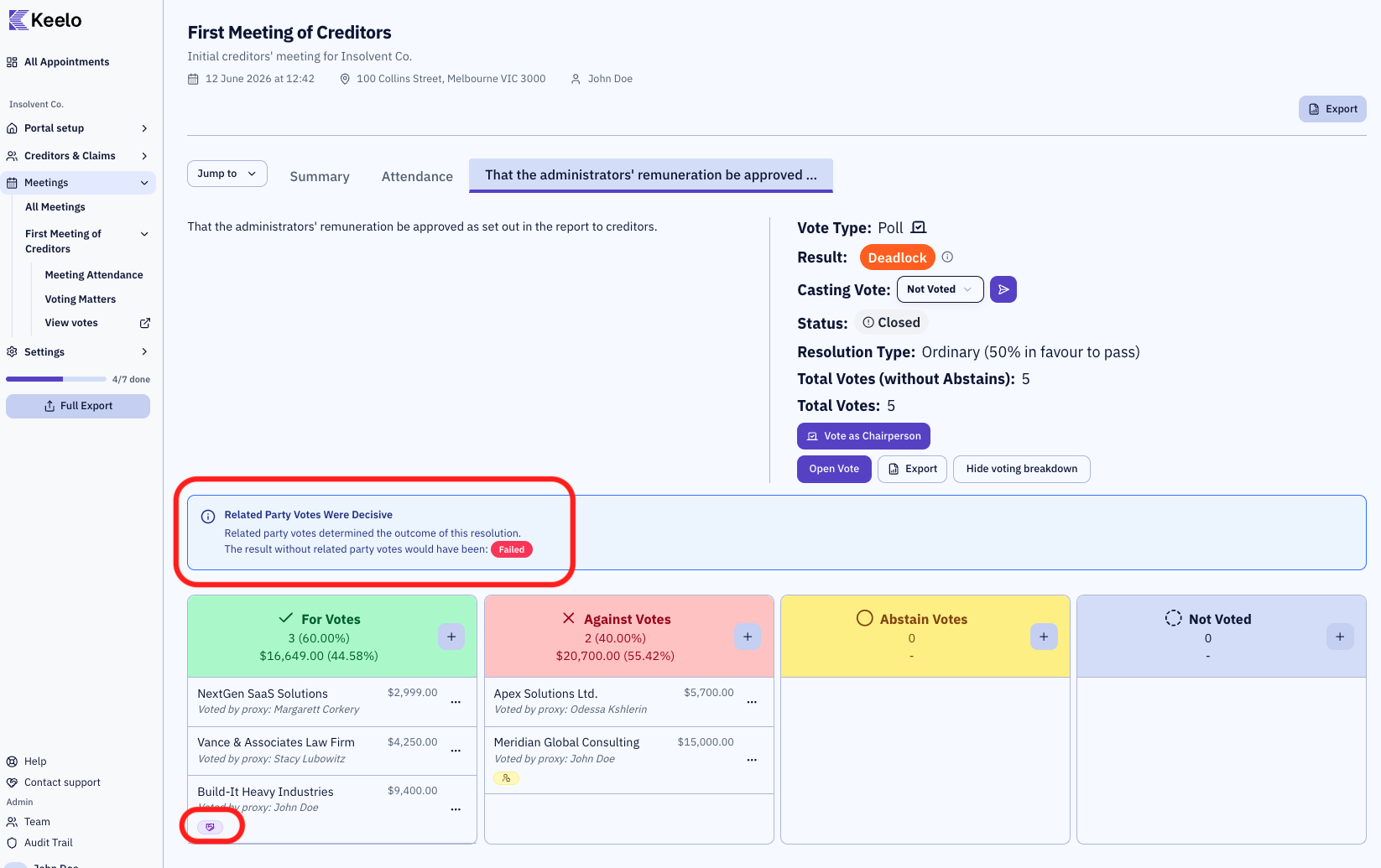
Related party creditors (directors, family members, related entities) carry a Related Party badge in the voting breakdown.
If related party votes changes the outcome of a vote, a banner will be displayed to notify the chairperson.