View and manage proxies
Viewing proxies
-
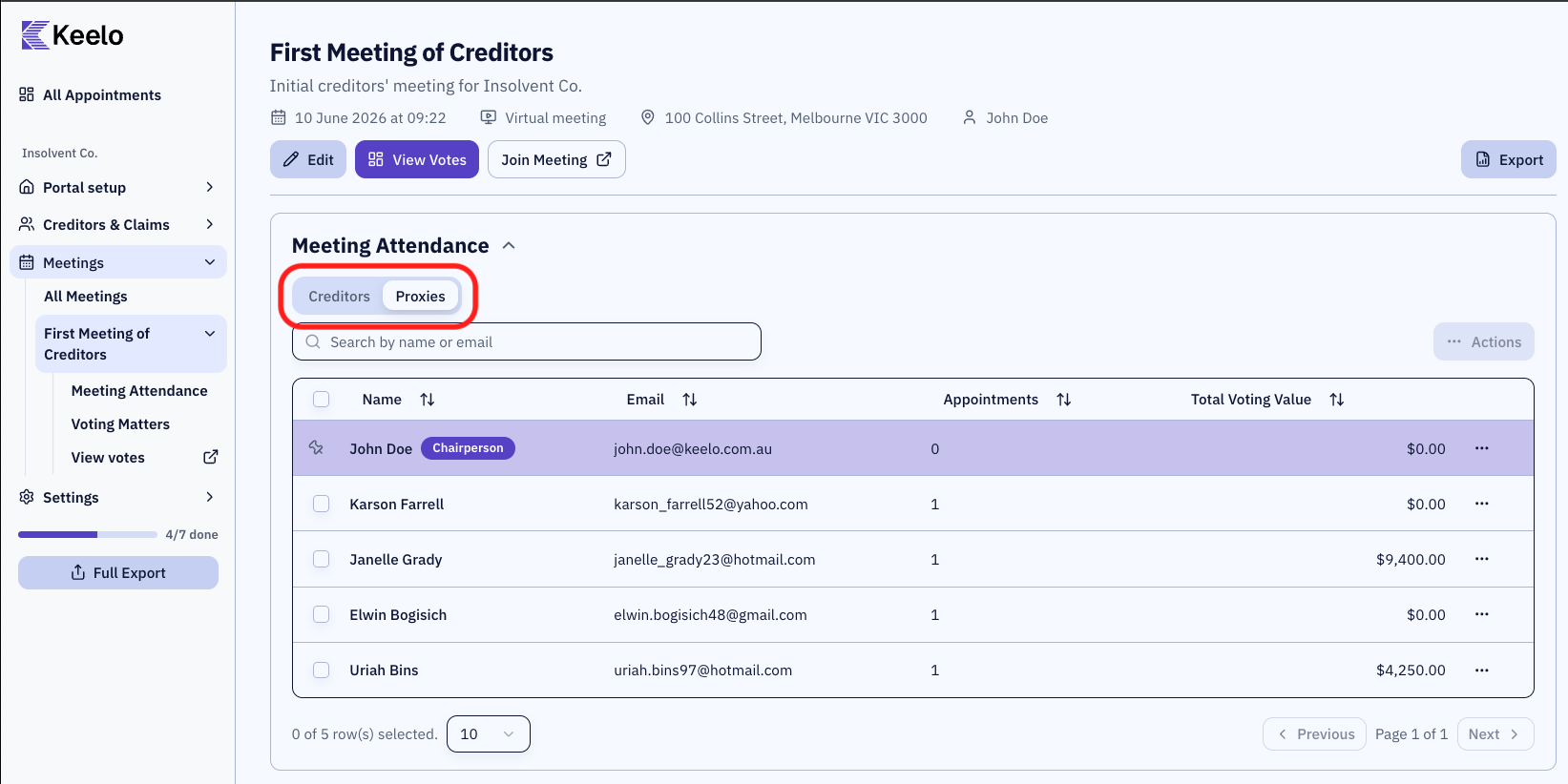
Navigate to the meeting page.
-
Click the Proxies tab.
View proxy appointments
-
Click the ⋯ menu on the proxy's row.
-
Click View proxy appointments
View proxy appointment and attendance forms
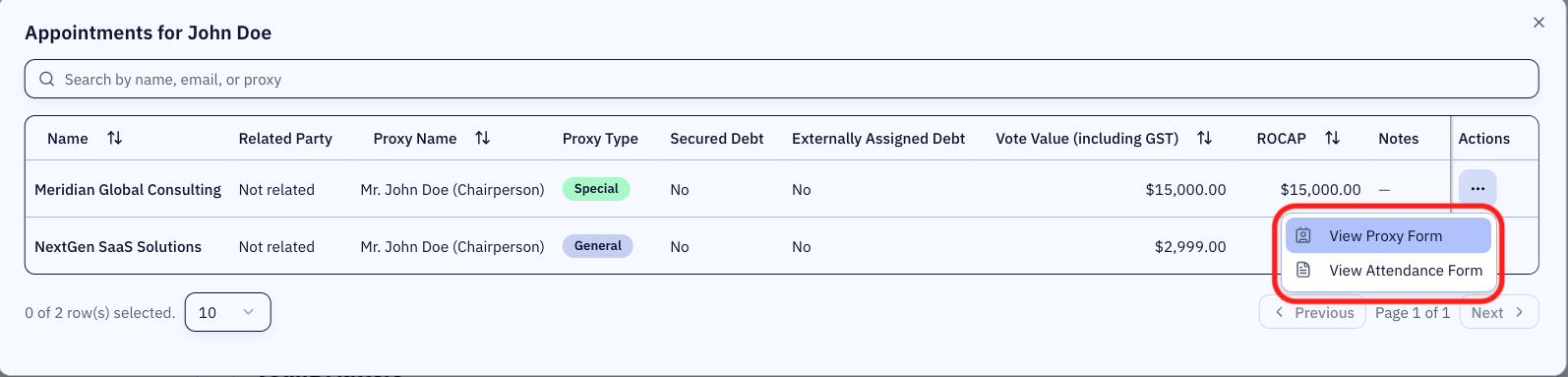
From the proxy appointments window, you can view the proxy appointment and meeting attendance forms by selecting the ⋯ on each appointment row.
Reset a proxy's access code
Use this when a proxy has lost their code, or when you want to invalidate an old one.
-
Click the ⋯ menu on the proxy's row.
-
Select Reset access credentials.
Refreshing an access code invalidates the previous one. If the proxy was already logged in, they'll be signed out and need to log in again with the new code.
Share an access code with a proxy
-
Click the ⋯ menu on the proxy's row.
-
Select Share access credentials. A dialogue opens showing the proxy's current access code and email.
-
Click Send via Email. The proxy receives an email with the code and a link to the meeting page.
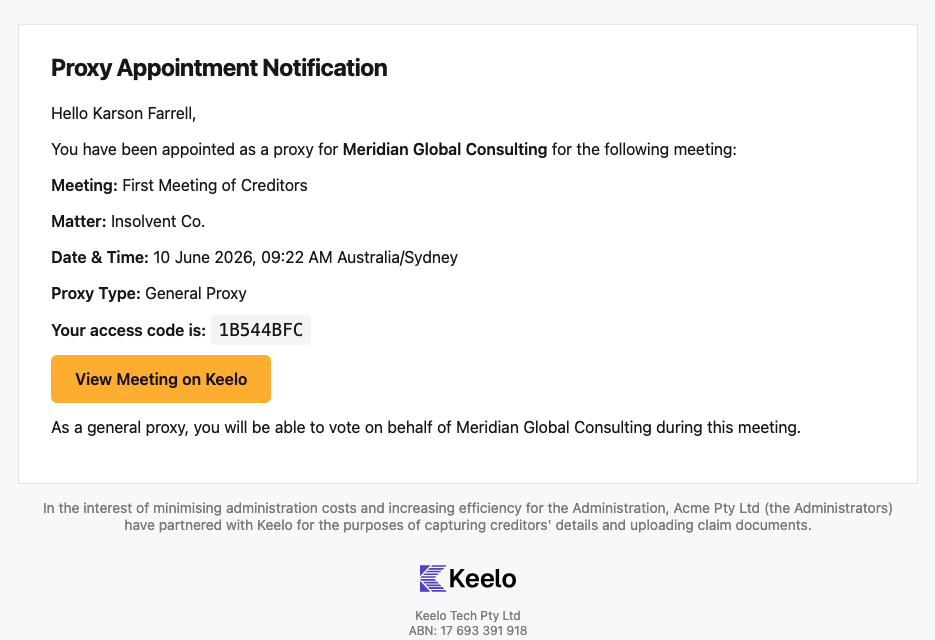
Proxy appointment email