Share access codes
Each creditor needs their unique access code to log into the creditor portal. Keelo generates a code automatically when you create or import a creditor.
You'll find the controls under Creditors & Claims → All Creditors in the sidebar.
Share to creditors in bulk (most common)
The fastest way to onboard a freshly imported batch of creditors.
- Open the appointment and navigate to Creditors & Claims → All Creditors.
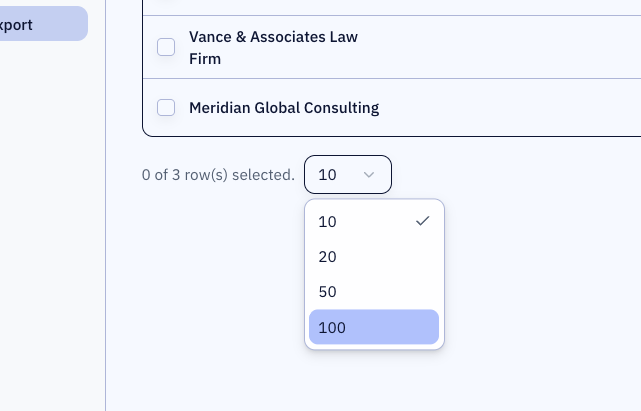
- Select the creditors you'd like to send to. Use the select all checkbox in the table header to select all in view. To increase the number of results in view, use the results-per-page dropdown.
- Open the Actions dropdown (top-right of the table) and choose Share Access Credentials.
- A confirmation dialogue opens listing every selected creditor. Review the list, then click Send emails.
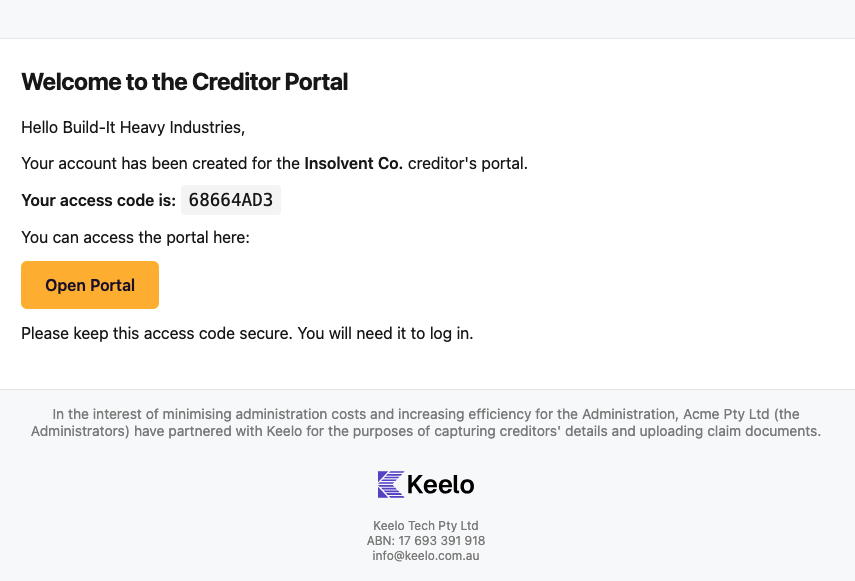
Each creditor receives an email containing their access code and a link to the portal. The Access Code column updates to Sent for each creditor as the emails go out.
Share access code to a single creditor
- Click the actions menu (three dots) on the row.
- Click Share Access Credentials. A dialogue opens showing the creditor's name, email, and current code.
- Click Send via Email to re-send the code.
The Sent badge means at least one access-code email has gone out for that creditor. The Portal Login column tracks whether they've actually logged in. A creditor showing Sent but Not Yet in Portal Login is someone you may want to follow up with.
Welcome email preview
Below is an example of the welcome email that is sent to the creditor: